Building a Web Application Using Django and React
Preamble
This guide will demonstrate how to create a web application using Django and React where users can vote on polls.
I wrote this guide to reflect how web apps are built in 2021 where we use such tools to rapidly prototype and deploy applications and to put new developers in a position where they can leverage such technologies effectively.
Django accelerates the development of web applications providing a solid backend foundation.
React simplifies the creation of user interfaces and frontend applications.
Our application will use the Django REST framework (DRF) to provide a backend API which our frontend React app will consume to provide a web interface.
There are many advantages in keeping the frontend and backend decoupled. The project is more maintainable and easier for frontend and backend teams to work on independently while also reducing server costs (because the frontend is static) and increasing page load speeds through CDNs.
You can clone the completed application from GitHub and download this document as a pdf.
Who is this for?
The reader should have a basic understanding of python and javascript.
Some of the concepts will be easier to grasp if the following tutorials have already been completed.
While I’ll endeavour to explain each part as fully as possible the reader should consult the relevant docs when confused.
This project is designed for learning purposes and should not be used in production.
Requirements
- Python 3.6+ available
- venv supported (may require system package)
- npm and npx commands available
- git command avilable
- linux/macOS
Contents
Getting Started
We’ll start by making a project folder and setting up the git repository. Remember that lines starting with $ indicates a normal user shell command where for example $ ls means you should type ls into the shell. Comments will start with # and provide additional help or context as to what you are doing.
We will create a project folder under ~/Projects/django-react-guide and I would advise the reader to use the same location to avoid confusion later on.
# Create the project folder and cd into it.
$ mkdir -p ~/Projects/django-react-guide && cd ~/Projects/django-react-guide
# Add a readme and GPLv3 license.
$ echo "# Django + React" > README.md && curl "https://www.gnu.org/licenses/gpl-3.0.md" -o LICENSE.md
We will now setup our git repository to allow version control and act as a way to to test changes without losing existing work while also allowing us to rollback to a previous version of our code.
# Initialize the projects' git repository.
$ git init
# Make git track all the files in this directory and stage them for the following "commit".
$ git add .
# A commit will save the current state of staged files and allow us to compare changes
# and roll back to an earlier commit should we need to.
$ git commit -m "init"
API
In this section we will create our backend API which will be responsible for managing our data and providing API “endpoints” which are URLs that will respond to HTTP methods like GET and POST acting on or returning data.
Setup
Lets start by creating a project folder for our API and adding a .gitignore file that will tell git to ignore certain files and directories that are either private or should be regenerated on a developers computer.
# Return to the project root (if you moved away).
$ cd ~/Projects/django-react-guide/
# Create the Django API project folder.
$ mkdir ./api && cd ./api
# Fetch a generic python .gitignore using  curl
$ curl "https://raw.githubusercontent.com/github/gitignore/master/Python.gitignore" -o ./.gitignore
The python virtual environment venv module creates a lightweight environment with its own site directories isolated from the systems python directories allowing us to tailor our python interpreter and dependencies to our current project (venv documentation).
We will create a virtual environment (venv) now, it will be excluded from our git repo thanks to the .gitignore we added earlier (we really don’t want it cluttering our repo).
We will also create a requirements.txt file that we will use with the pip command to install our project dependencies into our venv.
Below you will notice that (venv)$ denotes we are within our virtual environment which can be exited using the Ctrl + D shortcut or by typing exit into the shell.
# Ensure we are within our Django api directory.
$ cd ~/Projects/django-react-guide/api/
# Create a venv.
$ python3 -m venv --upgrade-deps ./venv
# Create a requirements file which lists the python packages we need.
# Namely: django, djangorestframework and django-cors-headers.
$ echo $'django\ndjangorestframework\ndjango-cors-headers' > ./requirements.txt
# We will now activate this venv using the source command.
# We will need to be within this environment when interacting with our Django project.
$ source ./venv/bin/activate
# Install the requirements file using pip.
(venv)$ pip install -r ./requirements.txt
After pip installs the django package our venv will now provide the django-admin command which we will use to create an empty project. Note that within our venv, the python command will point to our virtual environment and not our system python installation, rest assured that it will be the same as the systems python3 .
django-admin startproject [project name] [location] will create the correct folder structure and project files to quickly begin developing with Django.
# Ensure we are within our Django api directory.
$ cd ~/Projects/django-react-guide/api/
# Create a fresh django project in the current directory.
(venv)$ django-admin startproject api .
# Commit the projects initial state.
(venv)$ git add .
(venv)$ git commit -m "vanilla django project"
Once the project has been created it will provide us with a manage.py script that automates a lot of tasks.
The makemigrations command will generate SQL for our data models within migration files which are just python files that you can modify as needed (migration files). We can makemigrations whenever our models change to help us migrate our data easily.
The migrate command will cause the current migrations to be applied to the database creating tables as needed or altering them when we alter our models.
For this learning project we will use the default sqlite database driver but for production you will want to install and configure a real database like postgresql, see the docs for more details.
# Migrate the database
(venv)$ python manage.py migrate
We will also want to create an admin superuser for later use, the superuser is an account with maximum permissions and should generally not be used for normal administrative actions, see the docs for more details.
# Create an admin superuser that we can use later
(venv)$ python manage.py createsuperuser
Finally we will create an app which will contain our polls API using the manage.py script which will create all the necessary cruft for our app to work with the framework.
(venv)$ python manage.py startapp polls
Data Model
In Django we interact with our database using Model subclasses that allow SQL migrations to be automatically created and an ORM interface to be used when interacting with our database tables. Generally each Model represents a database table, see the docs for more information.
Our app will use two models to represent a poll that users can vote on, you will probably recognize them from the Django tutorial.
A Question model will contain the poll question in a CharField called question_text , the CharField will represent a field for character types in the database table.
A Choice model will represent the choices that can be voted for and will be related to a Question instance using a ForeignKey field called question . Votes will be stored in the votes field.
While I’ve kept things simple, if you’re new to Django you might want to read a little more about Models.
api/polls/models.py
from django.db import models


class Question(models.Model):
    question_text = models.CharField(max_length=200)
    pub_date = models.DateTimeField('date published')

    def __str__(self):
        return self.question_text


class Choice(models.Model):
    question = models.ForeignKey(Question, related_name='choices', on_delete=models.CASCADE)
    choice_text = models.CharField(max_length=200)
    votes = models.IntegerField(default=0)

    def __str__(self):
        return self.choice_text
Admin
Django provides an admin interface that automatically creates a UI for interacting with our models allowing us to search for data and create/edit instances of a model with an automatically generated form (admin docs).
These forms are created through the use of special admin classes that do a lot of work behind the scenes to create interfaces for us.
The QuestionAdmin will inherit ModelAdmin and will represent our Question model within the admin interface. ChoiceInline will represent our Choice model and be contained within the QuestionAdmin interface as a Choice should always have a parent Question.
Our QuestionAdmin will set the following properties:
fieldsetsto control how aQuestionis displayed.inlinesto specify thatChoiceInlineshould be included in the interface and automatically link eachChoiceinstance with thisQuestion.list_displayto specify which table fields should be shown in the list view where we can see all of ourQuestioninstances (table rows).list_filterto allow us to filter by thepub_datefield.search_fieldsto allow us to searchQuestioninstances byquestion_text.
Our ChoiceInline simply specifies which model to use and how many extra empty rows to display when adding choices to a Question .
Finally, we will register the QuestionAdmin with the admin site as the interface to use for Question.
This will make more sense once you explore the admin interface for yourself and play around with the settings.
api/polls/admin.py
from django.contrib import admin

from .models import Question, Choice


class ChoiceInline(admin.TabularInline):
    model = Choice
    extra = 3


class QuestionAdmin(admin.ModelAdmin):
    fieldsets = [
        (None, {'fields': ['question_text']}),
        ('Date information', {'fields': ['pub_date']}),
    ]

    inlines = (ChoiceInline,)

    list_display = ('question_text', 'pub_date')
    list_filter = ['pub_date']
    search_fields = ['question_text']


admin.site.register(Question, QuestionAdmin)
Serializers
Our serializers are responsible for converting data from our database into the JSON our frontend application will use while also validating and deserializing votes our users submit (serializers docs).
A ModelSerializer will automatically allow serialization/deserialization and validation for Model data. An internal Meta class controls which model and fields it should serialize allowing us to for example exclude fields that aren’t necessary for frontend applications to know about.
As our QuestionSerializer and ChoiceSerializer will map closely to our models we can inherit from ModelSerializer to automatically generate all the required fields. We specify ChoiceSerializer for the choices field in our QuestionSerializer so that field is serialized using our ChoiceSerializer , in this way we have a lot of control in how each field will be represented.
VoteSerializer is different because it’s only purpose is to validate user votes and save them to the database so we inherit from Serializer which is more suited for data that doesn’t map closely to our actual models. By using PrimaryKeyRelatedField for its choice field, user submitted choices will be validated against the Choice model based on the primary key.
The create function within VoteSerializer will be called when the serializer is saved and will simply increment the votes count for the relevant Choice instance using an F() expression which you can read more about here but simply put, it tells the database to do the increment to prevent a race condition where votes would be lost.
The update function will not be used and we declare that by raising a NotImplementedError as a way of self documenting the code.
api/polls/serializers.py
from django.db.models import F
from rest_framework import serializers
from rest_framework.serializers import PrimaryKeyRelatedField

from .models import Question, Choice


class ChoiceSerializer(serializers.ModelSerializer):
    class Meta:
        model = Choice
        fields = ('id', 'choice_text', 'votes')


class QuestionSerializer(serializers.ModelSerializer):
    choices = ChoiceSerializer(many=True)

    class Meta:
        model = Question
        fields = ('id', 'question_text', 'pub_date', 'choices')


class VoteSerializer(serializers.Serializer):
    choice = PrimaryKeyRelatedField(many=False, queryset=Choice.objects.all())

    def create(self, validated_data):
        choice_instance = validated_data.pop('choice')
        choice_instance.votes = F('votes') + 1
        choice_instance.save()
        return Choice.objects.get(pk=choice_instance.pk)

    def update(self, instance, validated_data):
        raise NotImplementedError()
Views
In Django views handle a web request and generate a response like the HTML of a webpage or a HTTP status code like 404. They could be a function or a class (view docs).
When using DRF, views act as API endpoints where they will return serialized data (in our case JSON), a ViewSet combines multiple related views into a single class where we define a list method to return a listing of serialized data or a retrieve method to return a single instance. It also allows for routers (to be introduced later) to generate a logical set of URLs for us where a URL like /api/polls/ would return a list of all polls and a URL like /api/polls/1 would return a single poll with a pk equal to 1 (viewset docs).
Our PollView will inherit from ModelViewSet which provides all the functionality required to interact with our Question model with list , retrieve , create , update , partial_update and destroy methods that are self explanatory.
We extend this functionality by adding a vote method and marking it as another action with the @action decorator, by default the router will give this a relative URL of vote/ so if PollView has the URL of /api/polls/ this action will be used from /api/polls/vote/ .
The vote action uses the VoteSerializer to cast a vote, the VoteSerializer will expect to receive some serialized data like {choice: 1} and will then return the Choice instance that was changed which will then be serialized and returned in a Response , we would expect a ValidationError if the received data is invalid, but Choice.DoesNotExist is unlikely to be raised as in most cases will be handled within the serializers validation logic but it’s always good to identify all expected exceptions and handle them quickly and gracefully to prevent unnecessary 500 response codes.
It’s also worth noting that we specify a serializer_class in the @action decorator which makes self.get_serializer return the correct serializer and the correct form to be shown within the browsable API. We set permission_classes=[AllowAny] because we want to allow anyone to vote on the poll, if this was “production” ready we would want to do additional checks to prevent people voting multiple times.
api/polls/views.py
from rest_framework import viewsets, status
from rest_framework.decorators import action
from rest_framework.permissions import AllowAny
from rest_framework.response import Response
from rest_framework.serializers import ValidationError

from .models import Question, Choice
from .serializers import QuestionSerializer, ChoiceSerializer, VoteSerializer


class PollView(viewsets.ModelViewSet):
    serializer_class = QuestionSerializer
    queryset = Question.objects.all()

    @action(methods=['post'], detail=False, permission_classes=[AllowAny], serializer_class=VoteSerializer)
    def vote(self, request):
        try:
            vote_serializer = self.get_serializer(data=request.data)
            vote_serializer.is_valid(raise_exception=True)
            choice = vote_serializer.save()
            choice_serializer = ChoiceSerializer(choice)
            return Response(choice_serializer.data, status=status.HTTP_200_OK)
        except Choice.DoesNotExist:
            return Response(status=status.HTTP_404_NOT_FOUND)
        except ValidationError as exp:
            return Response(exp.detail, status=exp.status_code)
URLs
We define our URL patterns in a urls.py file that will dispatch requests to the correct view (urls docs).
DRF allows us to use routers that work with viewsets to generate URLs automatically (router docs).
Because of the way we have organised our API we can simply register the PollView with a DefaultRouter and include that in our urlpatterns .
api/api/urls.py
from django.contrib import admin
from django.urls import path, include
from rest_framework import routers

from polls import views

router = routers.DefaultRouter()
router.register('polls', views.PollView, 'poll')

urlpatterns = [
    path('admin/', admin.site.urls),
    path('api/', include(router.urls))
]
Settings
We need to add our app and frameworks to INSTALLED_APPS .
api/api/settings.py
INSTALLED_APPS = [
    'django.contrib.admin',
    'django.contrib.auth',
    'django.contrib.contenttypes',
    'django.contrib.sessions',
    'django.contrib.messages',
    'django.contrib.staticfiles',

	# add our app and required frameworks
    'corsheaders',
    'rest_framework',
    'polls',
]
We will add an entry to MIDDLEWARE so our CORS settings will work as expected.
api/api/settings.py
MIDDLEWARE = [
    'django.middleware.security.SecurityMiddleware',
    'django.contrib.sessions.middleware.SessionMiddleware',
    'django.middleware.common.CommonMiddleware',
    'django.middleware.csrf.CsrfViewMiddleware',
    'django.contrib.auth.middleware.AuthenticationMiddleware',
    'django.contrib.messages.middleware.MessageMiddleware',
    'django.middleware.clickjacking.XFrameOptionsMiddleware',

	# add CORS middleware
    'corsheaders.middleware.CorsMiddleware'
]
We will whitelist http://localhost:3000 which will host our react app later and set DRFs default permission class which will prevent public changes to our polls API by adding the following settings to the end of the file.
api/api/settings.py
# CORS

if DEBUG:
    CORS_ORIGIN_WHITELIST = [
        'http://localhost:3000'
    ]

# REST FRAMEWORK

REST_FRAMEWORK = {
    'DEFAULT_PERMISSION_CLASSES': [
        'rest_framework.permissions.IsAuthenticatedOrReadOnly',
    ]
}
We should now make and apply migrations.
(venv)$ python manage.py makemigrations polls
(venv)$ python manage.py migrate
And create a new commit of our finished API.
(venv)$ git add .
(venv)$ git commit -m "API endpoints"
Data
We can now start using the admin interface to populate our app with data.
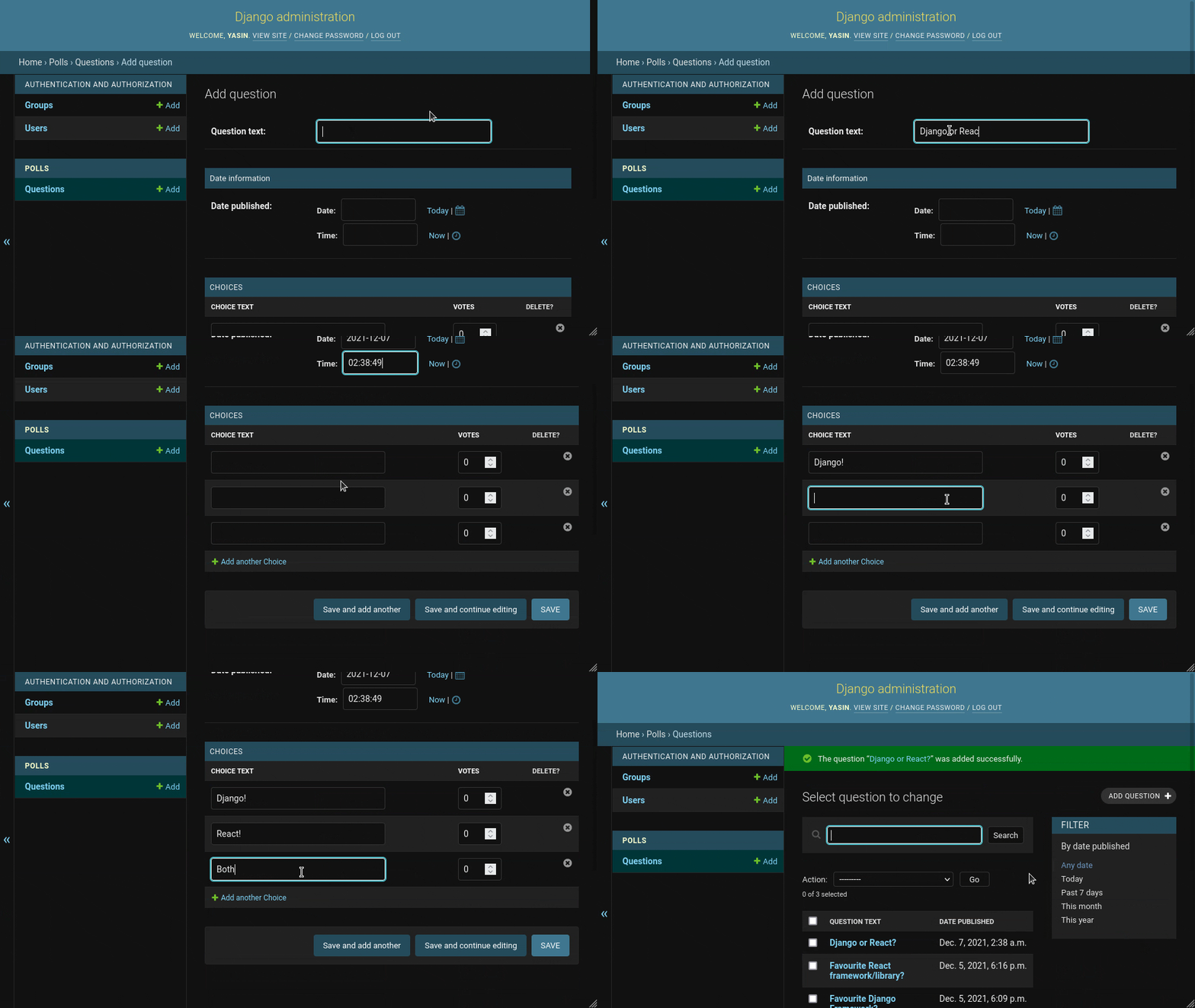
The manage.py script provides a development server that we can use to test our application and access the admin site.
(venv)$ python manage.py runserver
We can now navigate to http://localhost:8000/admin/ to view the admin interface, since it’s our first time visiting we will need to login using the details we set when we ran the createsuperuser command earlier.
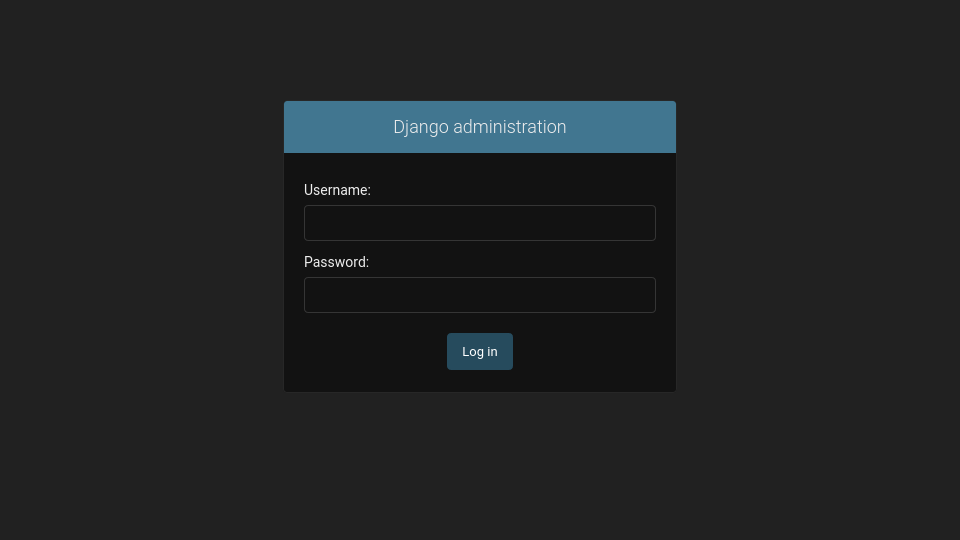
Once logged in we will see the admin interface showing all the installed apps that are registered with the admin site.
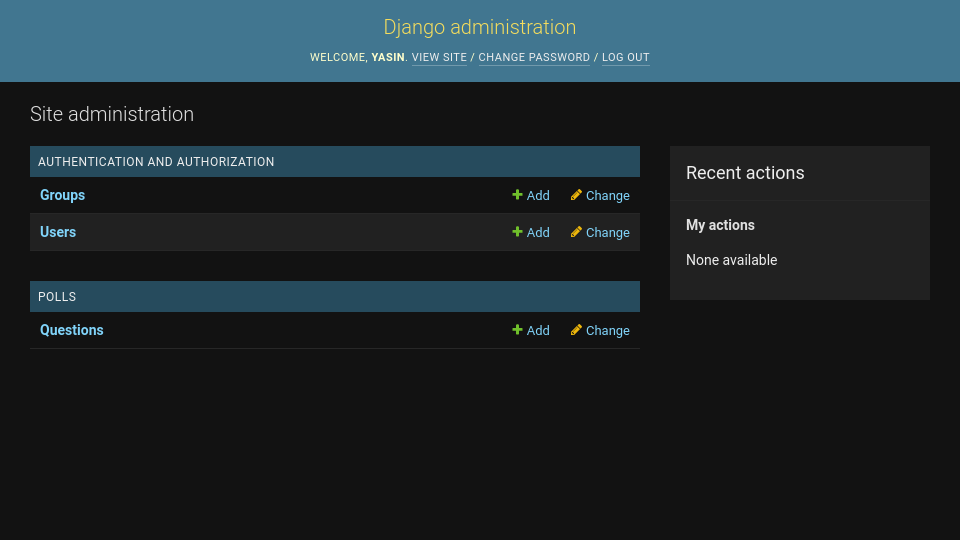
We registered the Question model with the admin site earlier, so it’s displayed in the interface. The Choice model isn’t shown because it was set to be inline within the Question model and so is contained within its admin interface.
You can select “Questions” to view a listing of question or choose to “Add” or “Change” a question, for now let’s “Add” a new question.
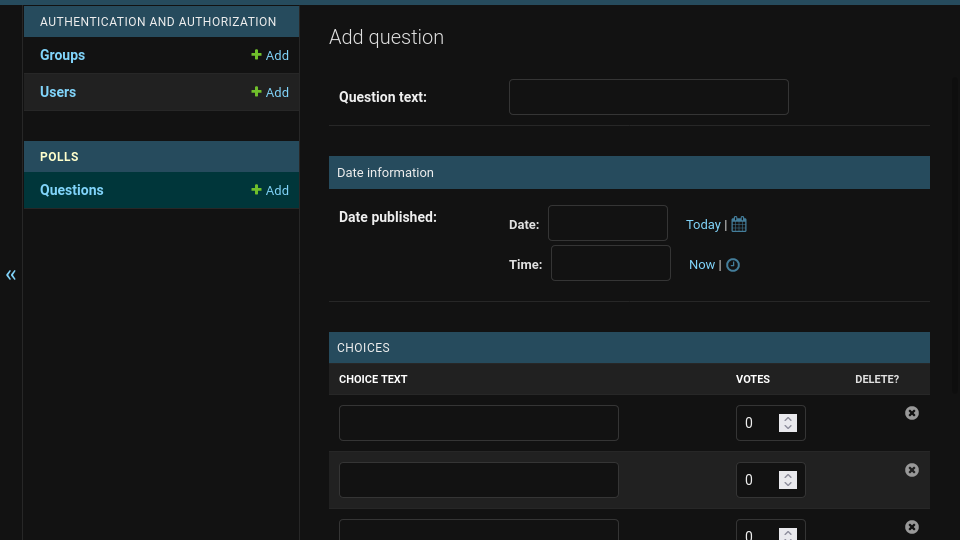
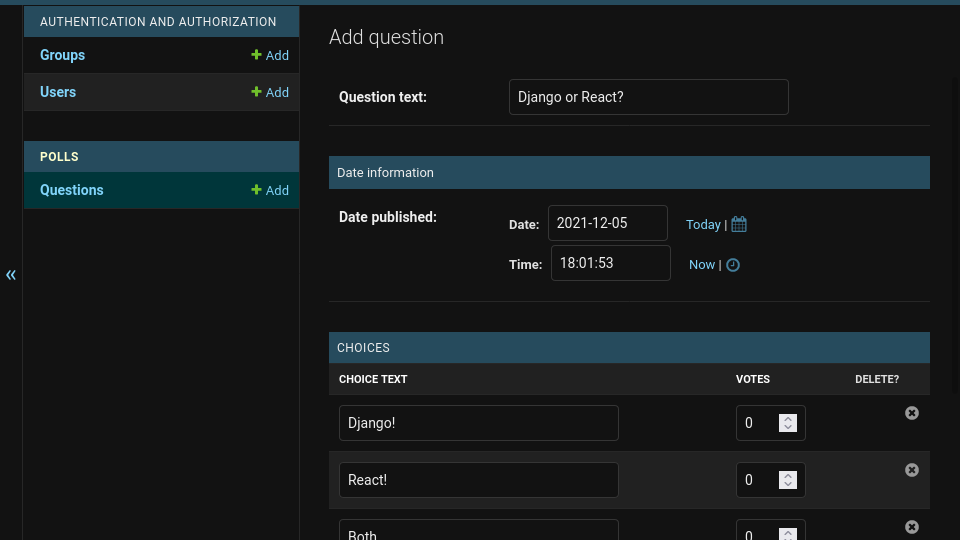
Write out a question for “Question text”, select a date and then add choices. Hit “Save” at the bottom of the page to add it to the database.
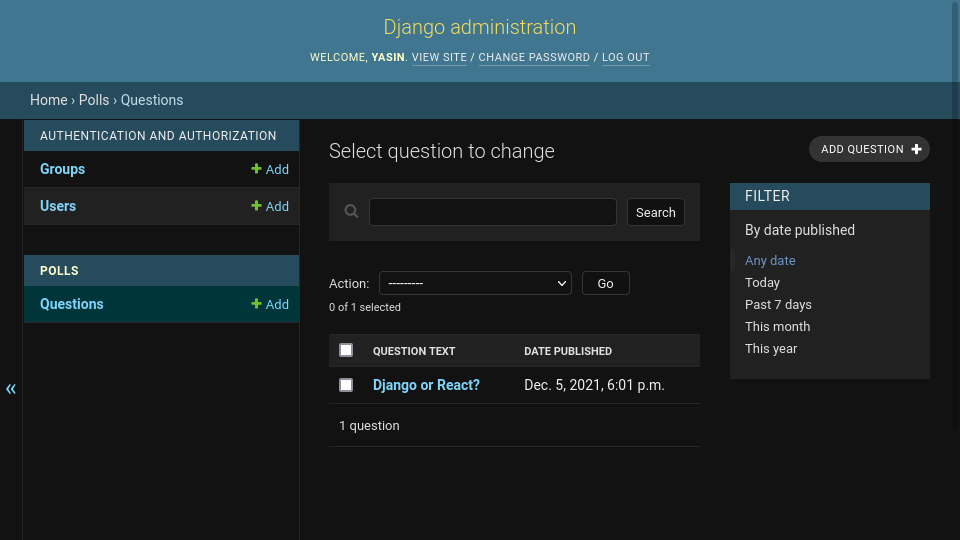
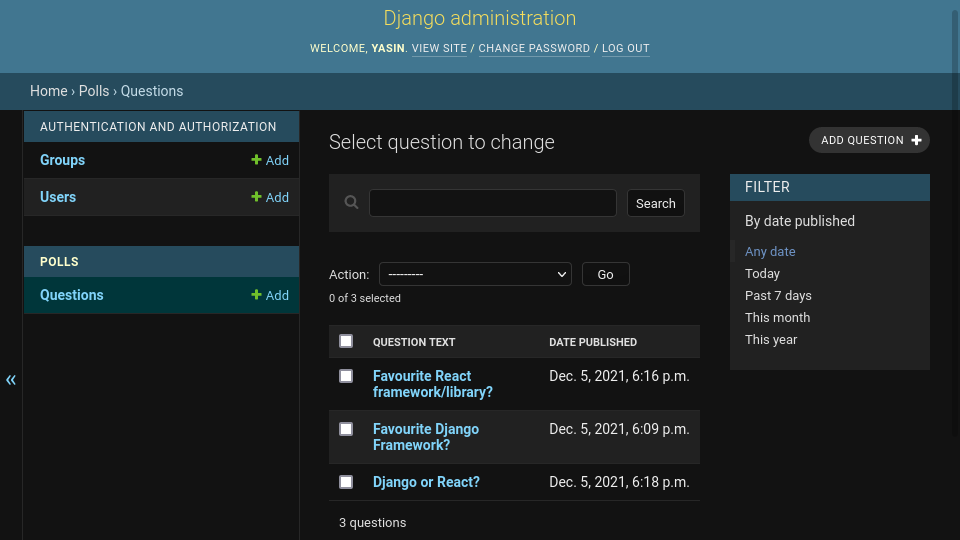
We will now be greeted with a listing of questions that we can search and filter by date, although there’s only the one we saved so far.
Continue to add Questions and remember we are not limited to just three Choices, hit “Add another Choice” to add another row of choices and hit the delete icon to remove one.
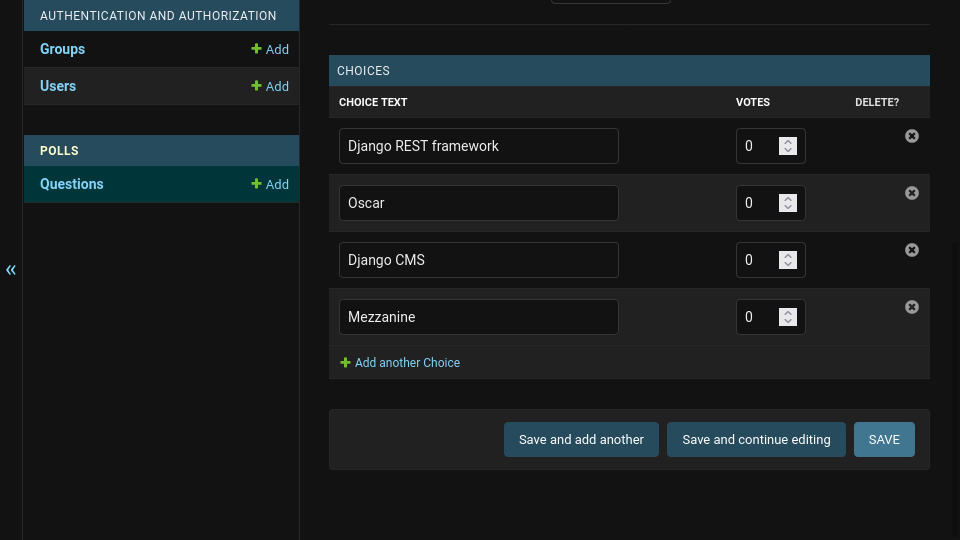
We should now have a nice set of questions that our frontend app will be able to consume.
Frontend
We can now move on to creating the frontend in react.
Setup
An empty react app will be created under web-frontend/ . The “web” prefix is used to maintain a logical naming convention as in the future frontends for other platforms might be created.
$ cd ~/Projects/django-react-guide
$ npx create-react-app web-frontend
$ cd ./web-frontend
We will also commit the fresh project.
$ git add .
$ git commit -m "vanilla react project"
We will only add a single CSS framework to the project to keep things simple.
$ npm install @picocss/pico
We’ll also add a proxy setting "proxy": "http://localhost:8000" which will proxy unknown requests to our Django development server so that a request to a URL like /api/polls/ will be proxied to http://localhost:8000/api/polls/.
You won’t need to change any other settings and the file below is only provided for context. In other words simply add the "proxy" setting and leave the rest of the file unchanged.
web-frontend/package.json
{
  "name": "web-frontend",
  "version": "0.1.0",
  "private": true,
  "proxy": "http://localhost:8000",
  "dependencies": {
    "@picocss/pico": "^1.4.1",
    "@testing-library/jest-dom": "^5.15.1",
    "@testing-library/react": "^11.2.7",
    "@testing-library/user-event": "^12.8.3",
    "react": "^17.0.2",
    "react-dom": "^17.0.2",
    "react-scripts": "4.0.3",
    "web-vitals": "^1.1.2"
  },
  "scripts": {
    "start": "react-scripts start",
    "build": "react-scripts build",
    "test": "react-scripts test",
    "eject": "react-scripts eject"
  },
  "eslintConfig": {
    "extends": [
      "react-app",
      "react-app/jest"
    ]
  },
  "browserslist": {
    "production": [
      ">0.2%",
      "not dead",
      "not op_mini all"
    ],
    "development": [
      "last 1 chrome version",
      "last 1 firefox version",
      "last 1 safari version"
    ]
  }
}
We will remove some of the extra files that create-react-app created as they are irrelevant to this guide.
$ cd ~/Projects/django-react-guide/web-frontend/src/
$ rm App.css App.test.js index.css logo.svg
Structure of a React app
It’s worth briefly mentioning how a react app is put together, from the React project root web-frontend/ we have a package.json file which specifies the node packages our project will use and other settings including scripts to start, build, test and eject our project. Ejecting a project is a dangerous operation that you can read about here.
We can start a React development server through the scripts we just mentioned.
# from our React project root.
$ cd ~/Projects/django-react-guide/web-frontend/
$ npm run start
This server will hotload any changes we make to our source files allowing for faster development.
We have three folders:
node_modules: This is where npm will install our project dependencies including React itself.public: This represents static files that our project can use and index.html which will be used as a basis to build our SPA (single page application).src: This represents our javascript source files includingindex.jswhich will act as a hook to start our application.
Feel free to edit <head> elements within index.html to adjust things like the title and description.
<meta
      name="description"
      content="Polling app powered by React and Django"
    />
<title>Web Polls</title>
You could also use index.html to include additional javascript or css libraries perhaps from a CDN although we wont be doing so.
Take a look at the simple React Component below.
import React from 'react';

class Simple extends React.Component {
    constructor(props) {
        super(props)

        this.state = {
            data: props.currentData
        }
    }

    render() {
        return (
            <p>{this.state.data}</p>
        );
    }
}
The constructor sets a special variable called state which is an immutable data structure representing the current state of the component.
We then return JSX that shows the current state of our data from the render method that will return the HTML representation of this component. The {} brackets evaluate a javascript expression so if our data was “42” we would render <p>42</p> .
Other components can then use this component within their own render methods.
import React from 'react';

class OtherComponent extends React.Component {
    render() {
        return (
            <div>
                <Simple currentData="Hello"/>
                <Simple currentData="World!"/>
            </div>
        );
    }
}
Notice how our JSX must be contained by a single tag and that we push props to a constructor by adding properties to our tags like currentData="Hello".
Web App
The starting “hook” for a create-react-app built application is index.js.
The call to ReactDOM.render will render React Components within the page DOM.
web-frontend/src/index.js
import React from 'react';
import ReactDOM from 'react-dom';
import App from './App';
import reportWebVitals from './reportWebVitals';

ReactDOM.render(
  <React.StrictMode>
    <App />
  </React.StrictMode>,
  document.getElementById('root')
);

// If you want to start measuring performance in your app, pass a function
// to log results (for example: reportWebVitals(console.log))
// or send to an analytics endpoint. Learn more: https://bit.ly/CRA-vitals
reportWebVitals();
Consider reading more about reportWebVitals once you finish this guide here.
Our app will use a single React Component called App which will use the lifecycle method componentDidMount to trigger a refresh of our data through our refresh method after the component is first rendered.
Votes will be handled in the vote method which will in turn trigger a refresh of our data.
We make our requests using the Fetch API and alter that data slightly to get the total_votes of a poll, in this way we can offload many simple tasks to our frontend apps.
web-frontend/src/App.js
import React from "react";
import '@picocss/pico/css/pico.css';


class App extends React.Component {
    constructor(props, context) {
        super(props, context);

        this.state = {
            polls: []
        }
    }

    componentDidMount() {
        this.refresh();
    }

    refresh() {
        fetch('/api/polls/', {
            method: 'GET',
            headers: {
                'Accept': 'application/json',
            }
        })
            .then(response => response.json())
            .then(data =>
                this.setState({
                    polls: data.map(poll => {
                        poll.total_votes = poll.choices.reduce(
                            (previousValue, currentValue) => previousValue + currentValue.votes, 0)
                        return poll;
                    })
                })
            )
            .catch((error) => console.error('Refresh Error:', error))
    }

    vote(choice) {
        fetch('/api/polls/vote/', {
            method: 'POST',
            headers: {
                'Content-Type': 'application/json',
            },
            body: JSON.stringify({choice: choice})
        })
            .then(() => this.refresh())
            .catch((error) => console.error('Vote Error:', error))
    }

    render() {
        return (
            <div className={"container"}>
                <header><h1>Polls</h1></header>
                <main>
                    {this.state.polls.map((poll) =>
                        <details key={poll.id}>
                            <summary>{poll.question_text}</summary>
                            {poll.choices.map((choice) =>
                                <button key={choice.id}
                                        style={{
                                            background: `linear-gradient( to right,
                                        var(--primary-hover)
                                        ${choice.votes * 100 / (poll.total_votes === 0 ? poll.total_votes + 1 : poll.total_votes)}%,
                                        var(--primary)
                                        ${(choice.votes * 100 + 0.1) / (poll.total_votes === 0 ? poll.total_votes + 1 : poll.total_votes)}%)`
                                        }}
                                        onClick={() => this.vote(choice.id)}>
                                    <strong style={{
                                        color: "var(--progress-background-color)",
                                        float: "left",
                                        minWidth: "80px"
                                    }}>
                                        <span>{choice.votes} </span>
                                        <sub>votes</sub>
                                    </strong>
                                    <strong>
                                        {choice.choice_text}
                                    </strong>
                                </button>
                            )}
                        </details>
                    )}
                </main>
            </div>
        );
    }
}

export default App;
One useful technique demonstrated here is rendering lists inline with JSX using the .map method, let’s go over a few inline examples.
Lists (note the use of the key property):
<ul>
    {myArray.map((item, index) =>
        <li key={index}>item</li>
    )}
</ul>
Conditional using the && operator:
<div>
    {errors.length > 0 &&
        <p>Error!</p>
    }
</div>
Conditional if-else using the ternary operator:
<div>
    {isLoggedIn
        ? <LogoutButton/>
        : <LoginButton/>
    }
</div>
Let’s complete by making a final commit.
$ cd ~/Projects/django-react-guide/web-frontend/
$ git add .
$ git commit -m "frontend application"
Putting it all together
Let’s start both the Django and react development servers in two separate terminal sessions and test our frontend application.
# from the Django project root
$ cd ~/Projects/django-react-guide/api/
$ source ./venv/bin/activate
(venv)$ python manage.py runserver

# from the React project root.
$ cd ~/Projects/django-react-guide/web-frontend/
$ npm run start
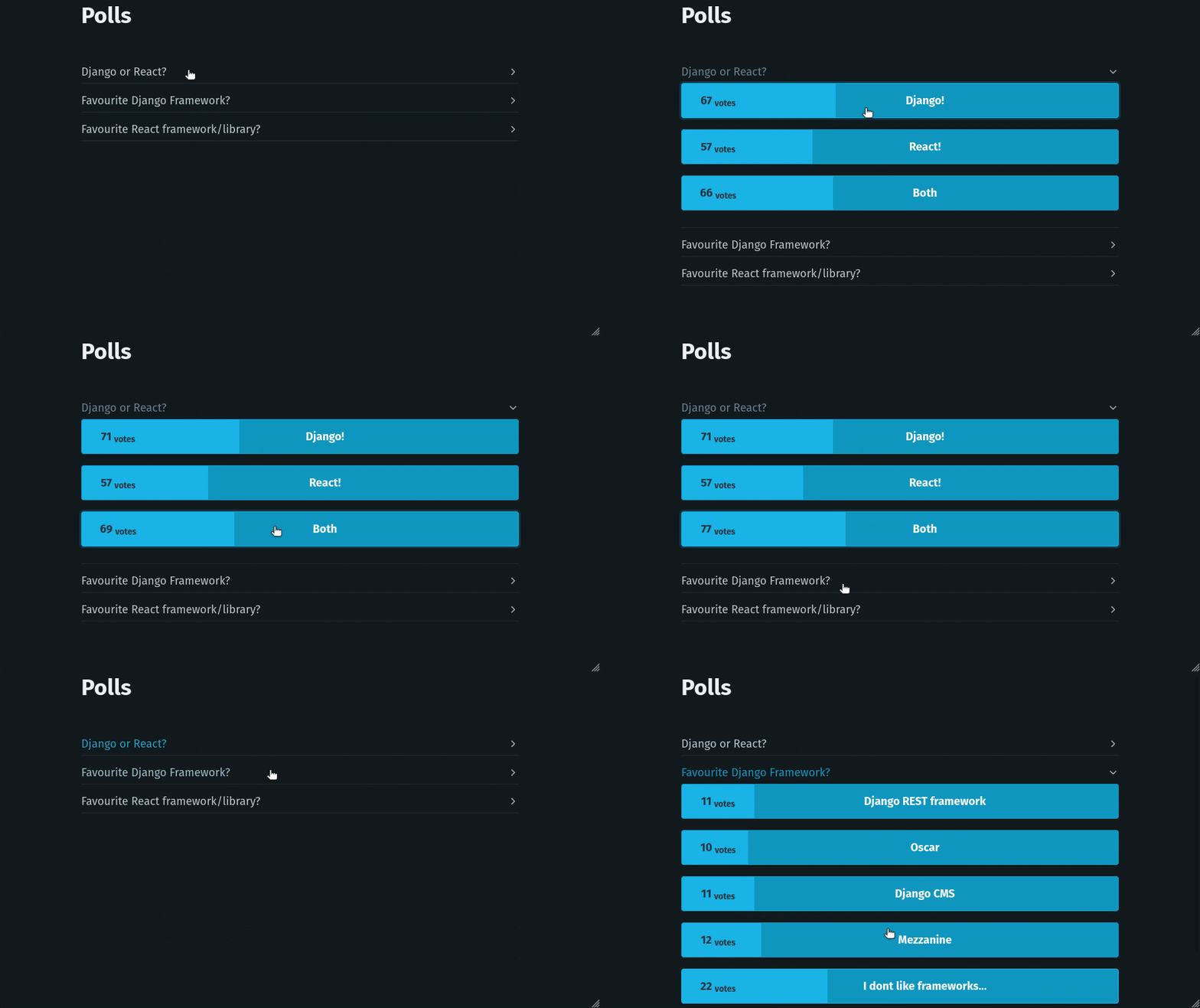
We should now be able to access our web app at http://localhost:3000/ where we can now vote on our polls.